 TCP Training
How to use TCP
Tips & features guide
A quick walkthrough of powerful features and tools across TCP Training that help you get the most out of your training.
1. During a workout: Exercise "⋮" menu
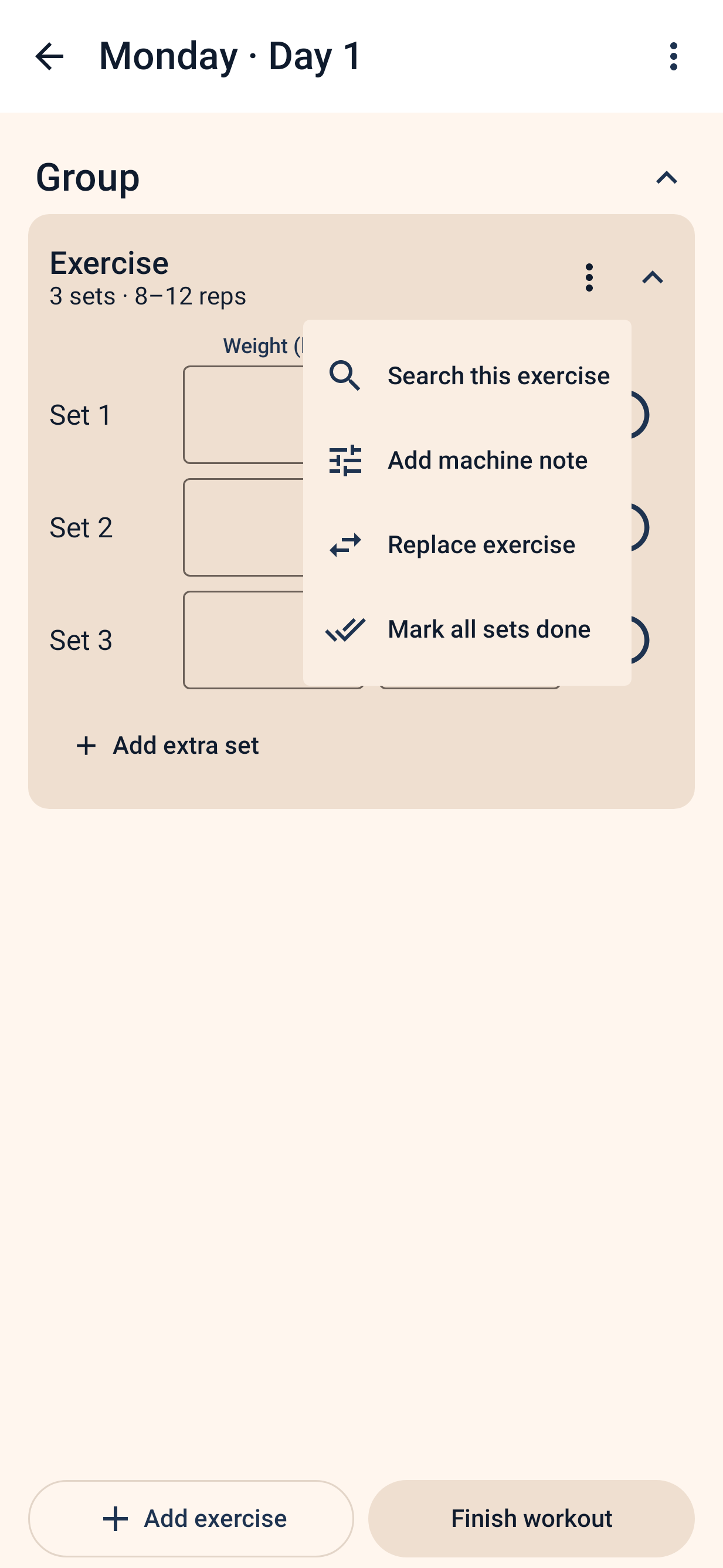
In any active workout, tap the ⋮ (More options) button at the top right of an exercise card to reveal quick adjustments:
- Replace exercise: When equipment is taken or broken, choose Only today to switch the movement for this session only, or Also change the plan to permanently update your routine.
- Plate calculator: Tap Plate calculator to see which plates go on each side of the bar for your set's weight and chosen bar size.
- Switch to an alternative: If your trainer set alternative exercises, tap Switch to an alternative (or the ⇄ flip button in the card header) to switch instantly.
- Machine notes: Tap Add note about this machine (or Edit machine note) to store your seat height, pin position, or cable attachment.
- Do later / Move back: Push a waiting exercise to the end of your session, then tap Move back when the rack or machine frees up.
- Search this exercise: Tap Search this exercise to quickly pull up form demos and execution tips on Google.
- Add extra set: Need an extra working set or drop set? Tap Add extra set on the fly.
2. Settings → Workout screen extras
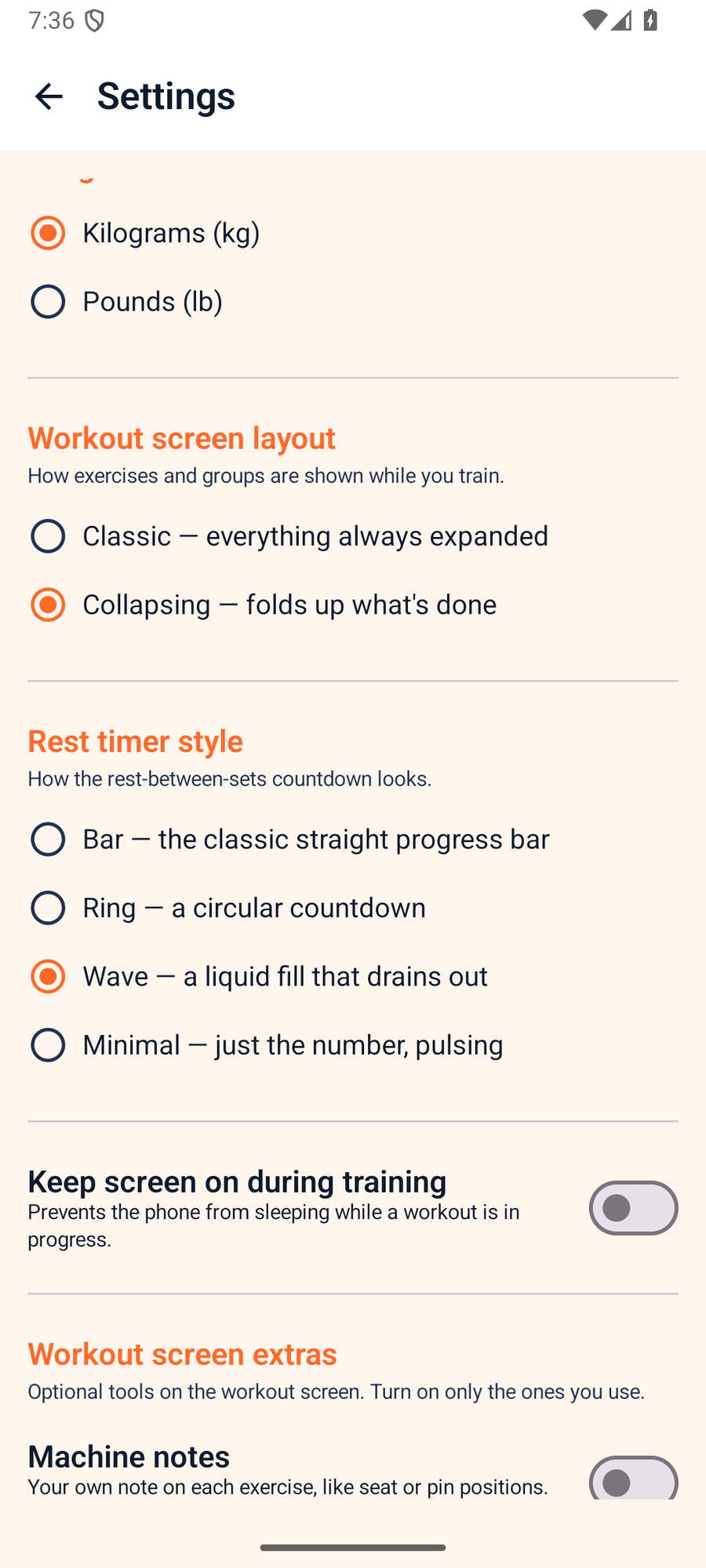
Tailor your gym-floor experience in Settings (under the More tab) under Workout screen extras:
- Machine notes: Shows your saved equipment adjustments right on the exercise card every workout.
- Do later: Keeps the "Do later" action handy in the exercise menu for busy gym hours.
- Time left: Shows an estimate of how much training time is left and your estimated finish time.
- Fill sets with last workout's numbers: Pre-fills weight and reps directly into the input boxes as editable text instead of faint placeholder hints.
3. Rest timer outside the app & "Log set"
You don't need to keep TCP Training open or keep your screen awake between sets:
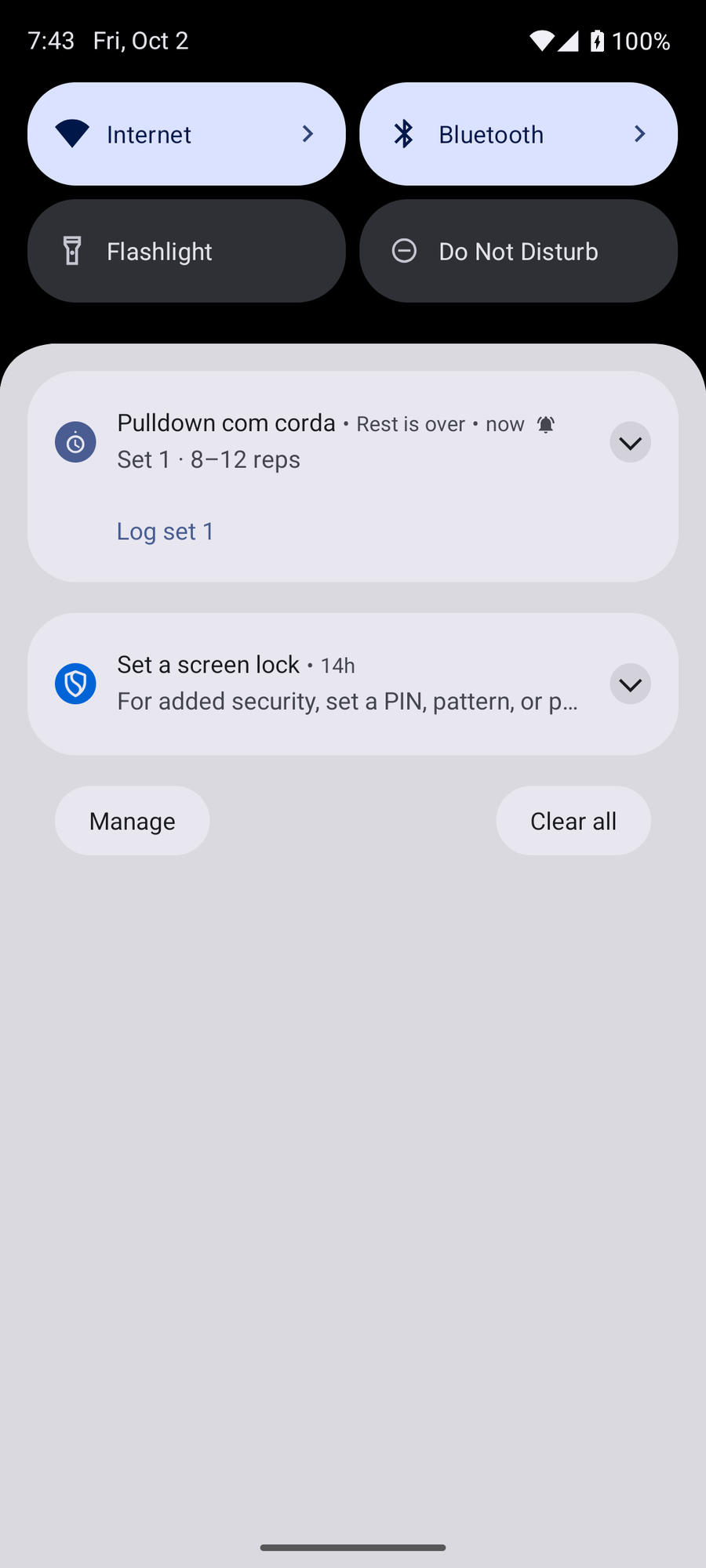
- Lock-screen countdown: When you complete a set, your rest timer runs seamlessly in the Android notification shade and on your lock screen.
- "Log set" notification button: When your rest concludes, the notification gives you a direct Log set N button. You can log your next set and restart the rest countdown without even unlocking your phone.
- Quick adjustments: Tap +15s to add more rest time or Skip to get right to lifting.
4. Home-screen widget & app shortcuts
Stay on track right from your phone's home screen:
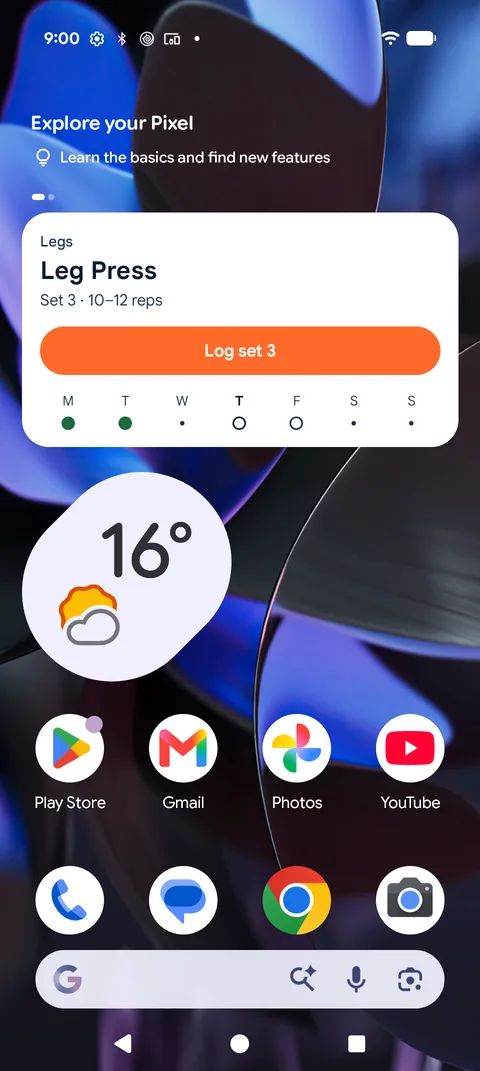
- Glance home-screen widget: Add the TCP Training widget to check today's planned session, view your weekly schedule strip, and log upcoming sets with a single tap.
- App icon shortcuts: Long-press the TCP Training app icon on your home screen or app drawer to quickly jump into Continue (reopens an active workout), Today, or History.
5. Supersets (Bi-sets & Tri-sets)
Group exercises together to perform back-to-back without rest between them:
- In the plan editor, tap the menu on an exercise and select Superset with the exercise below.
- A clear visual accent line connects the paired exercises on your workout screen so you know they belong together.
- Supersets work seamlessly across different muscle groups. To separate them, simply select Remove superset link.
- On the workout screen, a pair split across groups shows its letter (A) and a with … line under the name. Tap it to jump to the partner exercise.
6. Sharing workouts, photo cards & .tcp plans
Easily share your progress and routines with friends or your coach:
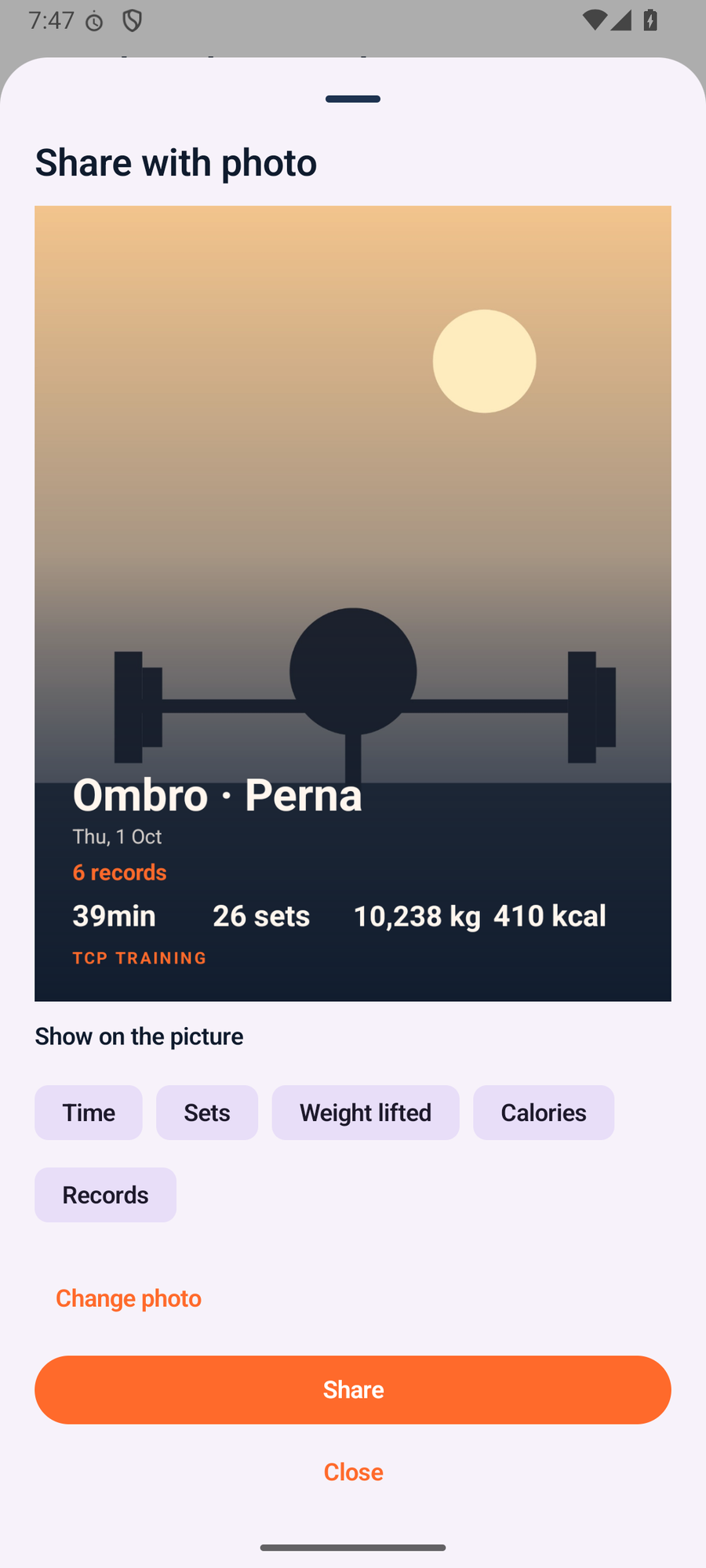
- Workout summary: When you finish your workout, tap Text to send formatted text to WhatsApp, or tap Photo to capture a workout photo with your stats (volume, sets, time) cleanly overlaid.
- Progress summary image: In the Progress tab, tap Share summary to export a high-resolution summary card of your training week, month, or year.
- Send & open .tcp plan files: Export any routine as a
.tcpfile. Send it over WhatsApp or email; anyone with TCP Training installed can tap the file to import the plan in one touch.
7. Progress: Estimated 1RM & Calendar
Keep an accurate view of your progressive overload and consistency:
- Estimated 1RM: In Progress → Exercises, track your strength gains with an estimated 1-Rep Max based on the Epley formula, smoothed over a 3-workout moving average for reliable progress tracking without dangerous max-out singles.
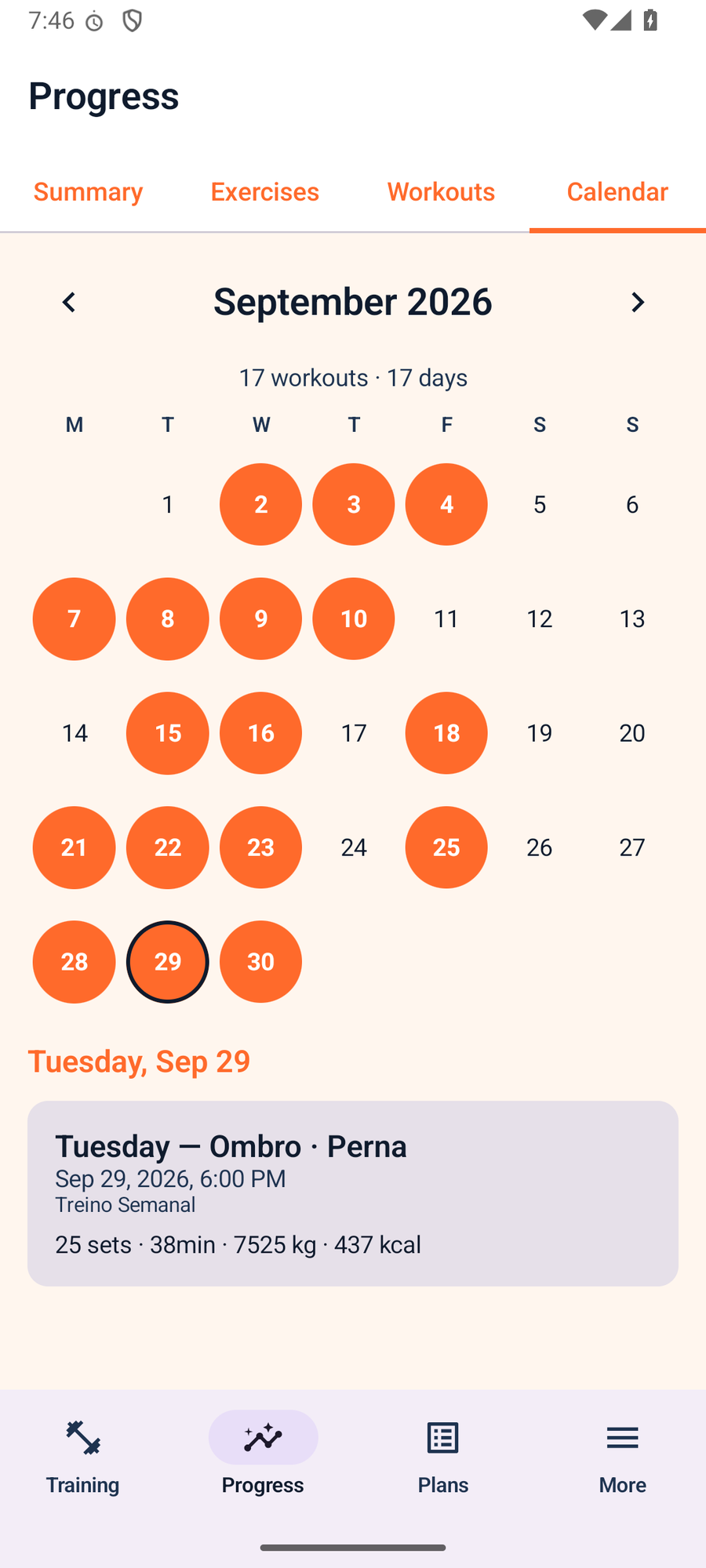
- Workout Calendar: In Progress → Workouts, see every training session highlighted on a monthly calendar, alongside totals for sets, reps, and tonnage lifted.
8. Plans for others & Backup and restore
Tools designed for coaches and complete data ownership:
- Plans for others: Under the More tab, Plans for others lets you build, manage, and share routines for clients or workout partners without mixing them into your personal training schedule.
- Backup & restore: In More → Backup & restore, export everything to a standalone
.tcpbackupfile, or set up automatic backups in a chosen folder (such as Google Drive). Your data is 100% yours and fully offline.